
An approximately 20-minute practice session for beginners who have tried HTML, CSS, and a JavaScript button.
You copy an example. It works. You change something—and suddenly the button does nothing.
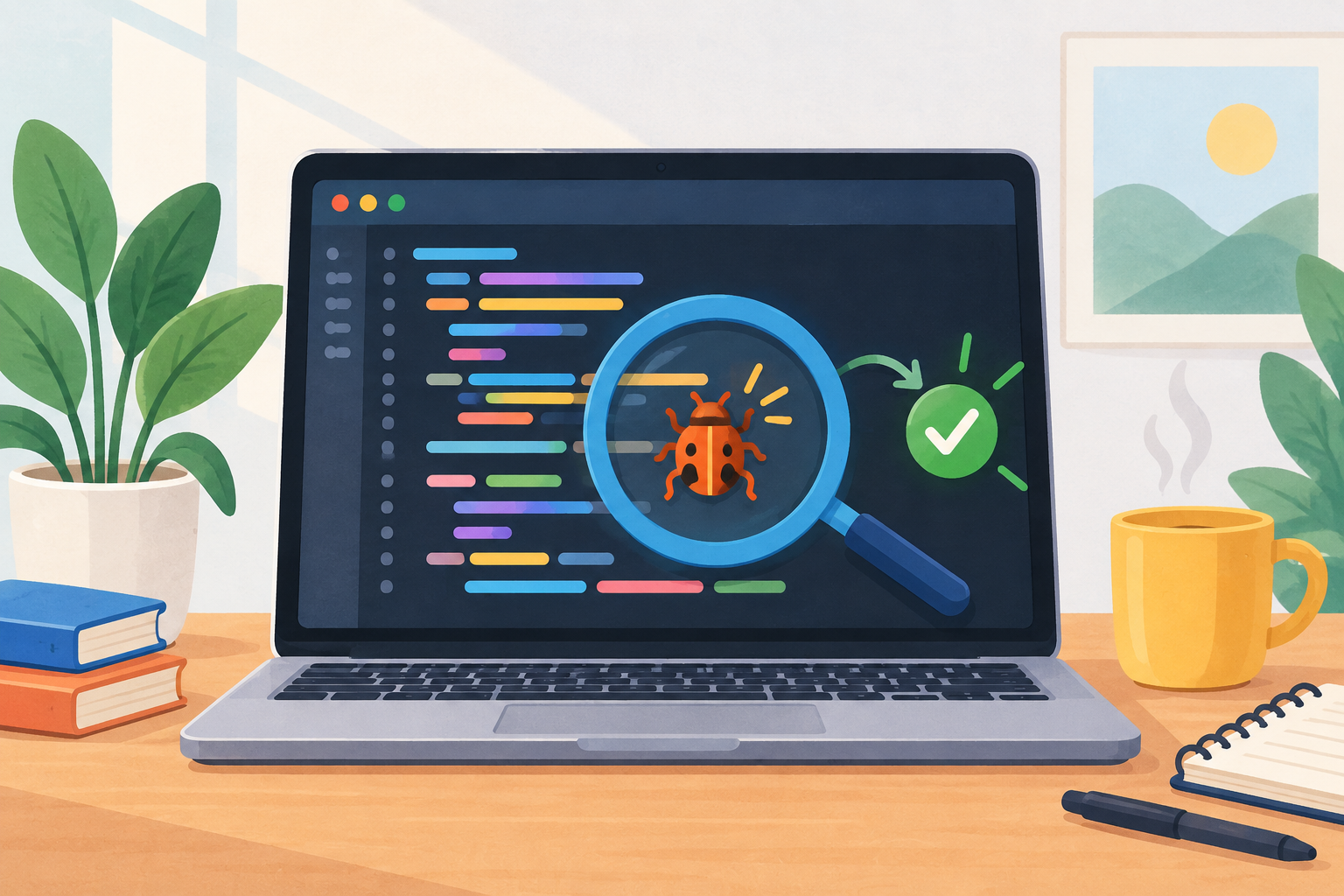
This is a normal part of learning to code. The next skill to practise is debugging: finding out why the result differs from what you expected.
In this exercise, you will repair a small practice card with two deliberate mistakes. You will also learn a method you can use on your own projects.
1. Describe what should happen
Before changing code, write down the expected result:
- The practice card should have a pale blue background and space around its content.
- Clicking Show my next step should replace the message with a practice suggestion.
A clear expectation gives you something specific to test.
2. Start with this deliberately broken page
Save the following code as debug-practice.html in your code editor, then open it in a desktop browser. If saving an HTML file is new to you, start with Building Web Pages Locally.
<!DOCTYPE html>
<html lang="en">
<head>
  <meta charset="UTF-8">
  <meta name="viewport"
        content="width=device-width, initial-scale=1.0">
  <title>My debugging practice</title>
  <style>
    body {
      font-family: sans-serif;
      margin: 24px;
    }

    .practice {
      background: #eaf4ff;
      padding: 24px;
      border-radius: 12px;
    }

    button {
      padding: 12px 16px;
      cursor: pointer;
    }
  </style>
</head>
<body>
  <main class="practice-card">
    <h1>My next coding step</h1>
    <p id="message" aria-live="polite">
      Click the button for a suggestion.
    </p>
    <button id="nextStep" type="button">
      Show my next step
    </button>
  </main>

  <script>
    const button = document.getElementById("nextstep");
    const message = document.getElementById("message");

    button.addEventListener("click", function () {
      message.textContent =
        "Practise for 10 minutes: change one thing and test it.";
    });
  </script>
</body>
</html>
Open the page and click the button. Compare what happens with your two expectations.
3. Investigate the button
Open the browser’s developer tools. In Chrome on Windows, press Ctrl + Shift + J to open the Console. On Mac, press Command + Option + J. Reload your practice page with the Console open. Chrome’s official instructions
You should see an error referring to null and addEventListener. The exact wording can vary between browsers.
For this example, it means JavaScript tried to attach a click listener to an element it had not found.
Compare these two lines:
<button id="nextStep" type="button">const button = document.getElementById("nextstep");Look closely at the capital S.
An ID must match exactly: nextStep and nextstep are different. When getElementById() finds no matching element, it returns null. MDN reference
Correct the JavaScript:
const button = document.getElementById("nextStep");Save the file, reload the page, and click the button again.
Checkpoint: the suggestion should now appear. The card’s appearance still needs fixing.
4. Investigate the missing style
The HTML uses this class:
<main class="practice-card">But the CSS targets this class:
.practice {Change the CSS selector to:
.practice-card {
  background: #eaf4ff;
  padding: 24px;
  border-radius: 12px;
}
Save and reload again. You should now see the pale blue card, its inner spacing, and rounded corners.
This mistake may produce no Console error. Valid CSS can still target the wrong element.
5. Build a debugging habit
Use this sequence whenever you get stuck:
- Describe: What should happen?
- Observe: What actually happens?
- Investigate: Check the relevant code and any Console error.
- Change one thing: Make a small correction you can explain.
- Test again: Save, reload, and repeat the same action.
If the screen seems completely unchanged, check that you saved the file and opened the same file in your browser.
Your next challenge
Starting from the repaired page, change the paragraph’s HTML ID from message to suggestion.
Before clicking the button, predict what else must change. Then test your prediction and repair the code.
Write one sentence about your fix:
“The message did not update because ________. I fixed it by ________.”
Being able to explain a repair is part of understanding the code.
If you ask another person—or an AI assistant—for help, include your expected result, actual result, error message, and the smallest example that reproduces the problem. Ask for an explanation or a hint, then test the suggested change yourself.
Continue with Create an Interactive Button with JavaScript and apply the same debugging method to its exercise.