
HTML Audio and Video for Beginners: Add Players, Captions, and a Transcript

Your hobby page already has text and pictures. What if you want visitors to watch a short demonstration or listen to an explanation?
HTML has built-in audio and video players. You can add playback controls without writing JavaScript—and provide captions and written alternatives so more people can follow your content.
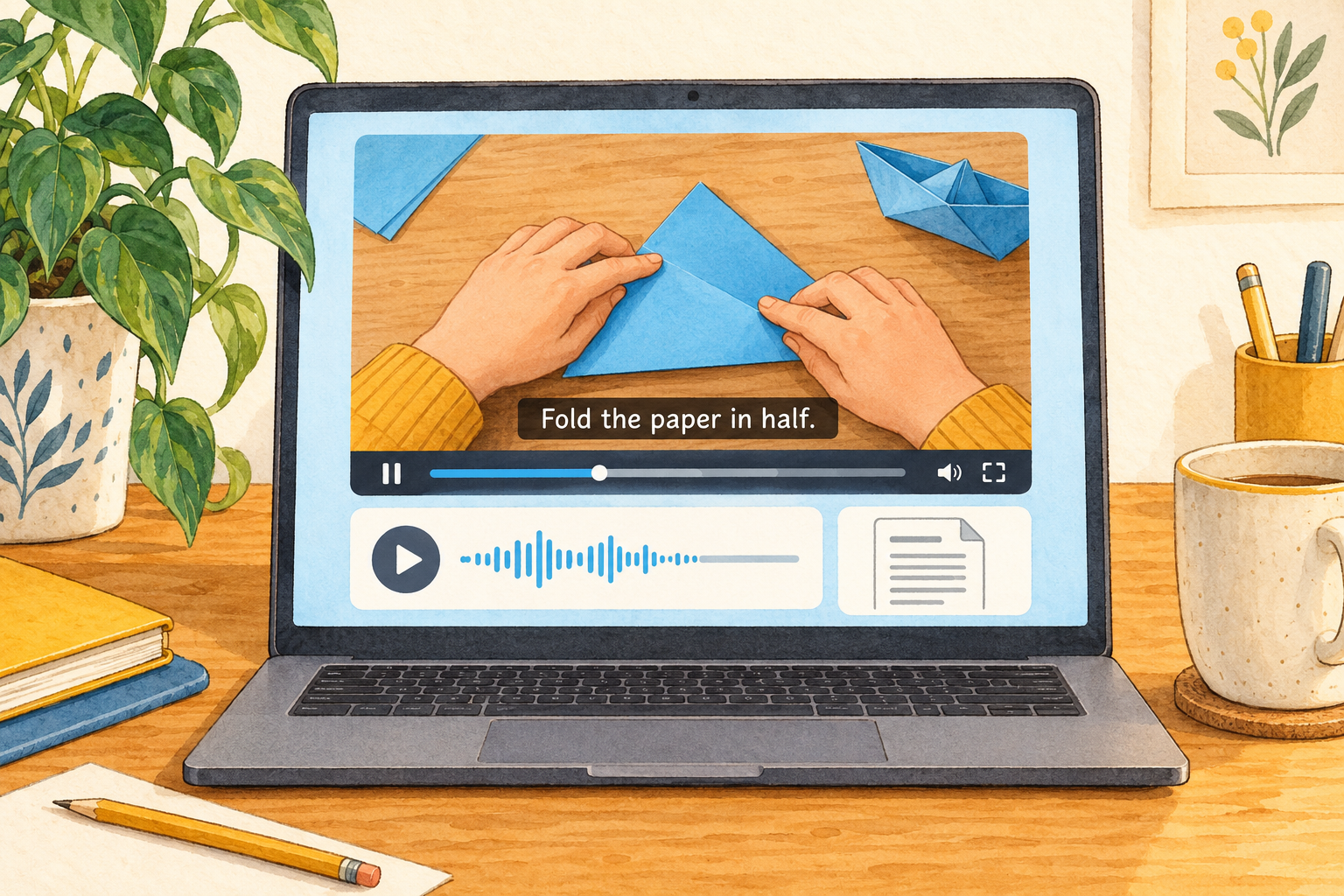
Your goal: build a small page with a video, an audio recording, video captions, and visible transcripts.
Before you start: you should recognise headings, paragraphs, and file paths. Review the HTML examples if these are new.
Try the working example
Play the short animated demonstration below, then listen to the separate introduction. Both recordings use a synthetic neural English voice. The video includes visible captions and a selectable English caption track.
Watch one simple fold
Open the paper-folding video file
Video transcript and visual description
Let's practise one simple paper fold. Place a rectangular sheet of paper flat, with the short edges at the top and bottom. Bring the bottom edge up to meet the top edge. Line up the corners, then press along the folded edge. Your paper is now folded in half. Pause the video and try it yourself.
Visual description: A blue rectangular sheet lies upright. Its bottom half lifts upward until the bottom edge meets the top edge. The two corners align. A yellow marker moves along the horizontal folded edge. The finished sheet has half its original height.
Listen to the introduction
Open the audio introduction file
Audio transcript
Welcome to this HTML audio and video practice page. Watch a simple paper fold, turn on the English captions, or read the transcript. You can play and pause each recording using the built-in controls.
1. Prepare your practice files
Download the complete HTML audio and video practice pack (ZIP). It includes the working HTML page, both recordings, the caption file, and transcripts. Extract the whole ZIP before opening its files.
media-practice/
  index.html
  media/
    paper-fold.mp4
    introduction.mp3
    captions-en.vtt
    video-transcript.txt
    audio-transcript.txt
You can also use short recordings that you created or have permission to use. Update the filenames, captions, and transcripts to match. Renaming a file to .mp4 or .mp3 does not convert its format.
This project uses a folder on your computer. The online Sandbox cannot read that folder. For reliable caption testing, use a local web-server preview or a hosting preview that serves the files over HTTP or HTTPS. Opening the HTML by double-clicking can cause browser restrictions on caption files.
Need help organising files? Read Website Paths, Folders & File Names Explained.
2. Add the players to your page
The practice pack contains this complete index.html file. Keep its media folder beside it:
<!doctype html>
<html lang="en">
<head>
  <meta charset="utf-8">
  <meta name="viewport"
        content="width=device-width, initial-scale=1">
  <title>My paper-folding media page</title>
  <style>
    body {
      margin: 0;
      padding: 24px;
      font-family: system-ui, sans-serif;
      line-height: 1.6;
      color: #172b3a;
      background: #f4f7fa;
    }
    main { max-width: 720px; margin: auto; }
    video, audio { display: block; width: 100%; }
    video { height: auto; }
    a { color: #145da0; }
    a:focus-visible {
      outline: 3px solid #145da0;
      outline-offset: 3px;
    }
  </style>
</head>
<body>
  <main>
    <h1>My paper-folding practice</h1>
    <section>
      <h2>Watch one simple fold</h2>
      <p>Watch the demonstration, or read its transcript below.</p>
      <video controls preload="metadata" playsinline>
        <source src="media/paper-fold.mp4" type="video/mp4">
        <track src="media/captions-en.vtt" kind="captions"
               srclang="en" label="English" default>
        Your browser does not support HTML video.
      </video>
      <p><a href="media/paper-fold.mp4">Open the video file</a></p>
      <h3>Video transcript</h3>
      <p>Let's practise one simple paper fold. Place a rectangular sheet of paper flat, with the short edges at the top and bottom. Bring the bottom edge up to meet the top edge. Line up the corners, then press along the folded edge. Your paper is now folded in half. Pause the video and try it yourself.</p>
      <p><strong>Visual description:</strong> A blue rectangular sheet lies upright. Its bottom half lifts upward until the bottom edge meets the top edge. The two corners align. A yellow marker moves along the horizontal folded edge. The finished sheet has half its original height.</p>
    </section>
    <section>
      <h2>Listen to the introduction</h2>
      <audio controls preload="metadata">
        <source src="media/introduction.mp3" type="audio/mpeg">
        Your browser does not support HTML audio.
      </audio>
      <p><a href="media/introduction.mp3">Open the audio file</a></p>
      <h3>Audio transcript</h3>
      <p>Welcome to this HTML audio and video practice page. Watch a simple paper fold, turn on the English captions, or read the transcript. You can play and pause each recording using the built-in controls.</p>
    </section>
  </main>
</body>
</html>
If you replace the recordings, replace both transcripts with your actual content before sharing the page.
The direct file links sit outside the players so they remain available even if a supported player cannot load a recording.
3. Understand the important attributes
controls asks the browser to provide playback controls. Their appearance and available options vary across browsers and devices.
preload="metadata" suggests loading basic information, such as duration, before playback. It is a browser hint, not a guarantee about downloads.
playsinline allows inline video playback on browsers that support it, rather than requiring fullscreen playback.
Each source supplies a media address and format hint. If you genuinely have another encoded version, you can add another source inside the same player:
<source src="media/paper-fold.webm"
        type="video/webm">
Only add that line when the file exists. Playback support depends on the encoding inside the file as well as its extension.
Leave out autoplay for this exercise. Let visitors decide when playback begins. See MDN’s video reference and audio reference for further details.
4. Create the video captions
Captions follow the recording’s timing. They include spoken words and meaningful sounds—not just a short description beneath the player.
The practice pack includes captions-en.vtt. Open it in a plain-text editor to inspect the actual timings. This short example shows the format:
WEBVTT

00:00:00.000 --> 00:00:03.000
Fold the paper in half.

00:00:03.000 --> 00:00:06.000
Press along the folded edge.
Keep the blank line after WEBVTT and between the caption blocks. Change the words and timings to match your recording. Include meaningful sounds, such as [timer rings], when they help someone understand what happened.
The HTML track connects this file to the video:
kind="captions"identifies its purpose.srclang="en"identifies the caption language.label="English"names the track in the player.defaultrequests that track initially, subject to user preferences.
HTML does not generate captions automatically. You must create or obtain them and check their accuracy. See MDN’s track reference.
Our demonstration also has captions drawn into the video. Turning off its separate caption track will not remove those visible words. On your own video, a separate track lets visitors choose whether captions appear.
5. Make the content understandable without playback
A transcript lets visitors read the content at their own pace. Keep it available as ordinary page text.
For audio, include the spoken words and relevant sounds. For video, also describe important visual information that the speech does not explain.
For example, “Fold it like this” gives little information to someone who cannot see the demonstration. Clear narration such as “Bring the bottom edge up to meet the top edge” explains the action.
Captions and transcripts serve different needs. A written transcript also does not replace audio description where that is needed. W3C’s media accessibility guide explains how to choose appropriate alternatives.
6. Test before sharing
Check that:
- Both recordings play and pause.
- The English captions can be selected and match the speech.
- The transcripts accurately represent the recordings.
- You can reach and operate the players with a keyboard, with your position visible.
- The page fits a narrow screen and remains readable at 200% zoom.
- Both direct file links work.
Player appears, but nothing plays? Check the path, filename, encoding, and whether the file opens directly.
Captions are missing? Check the .vtt extension, timestamps, and selected caption track. Test through HTTP or HTTPS with the page and captions on the same origin. The server should serve the caption file as text/vtt.
Audio is silent? Check the recording itself, player volume, and device volume.
Your challenge
Replace the practice recordings with a short explanation of your own hobby. Add accurate captions and transcripts, then ask someone to understand the page with the sound muted.
Before finishing, explain the different jobs of source, track, and the transcript. If you can explain those three parts, you understand more than how to paste a media player.
Continue with the Playcode123 learning path and apply the same checks to your own hobby page.